Why you can’t afford to disable WordPress auto-updates anymore
For years, the cautious advice for a WordPress site was simple: disable auto-updates, update by hand once a week, and nothing breaks unexpectedly. That advice was built for a slower world. AI now finds plugin vulnerabilities in bulk, attackers weaponise them within hours, and AI-assisted development means the plugins themselves change faster than ever. Here’s why keeping auto-updates off has become the risky choice, how all those updates can still break your site, and how to stay on top of them without babysitting wp-admin.
The old advice: switch auto-updates off
Disabling WordPress automatic updates made sense when updates were the main thing that broke sites. A plugin update could conflict with another plugin, a theme update could move a button, and discovering that on Monday morning was worse than updating deliberately on a quiet Friday. So site owners and agencies added AUTOMATIC_UPDATER_DISABLED or WP_AUTO_UPDATE_CORE to wp-config.php, left the plugin auto-update toggles off, and scheduled a manual update day.
WordPress itself went the other way. Minor core releases have installed automatically since WordPress 3.7; since WordPress 5.5 administrators can switch on auto-updates plugin by plugin and theme by theme; and since WordPress 5.6 new installations auto-update major core releases too. Plugin and theme auto-updates run twice a day through WP-Cron. The platform’s bet is clear: for most sites, being current is safer than being careful by hand.
Why the pile of updates keeps growing
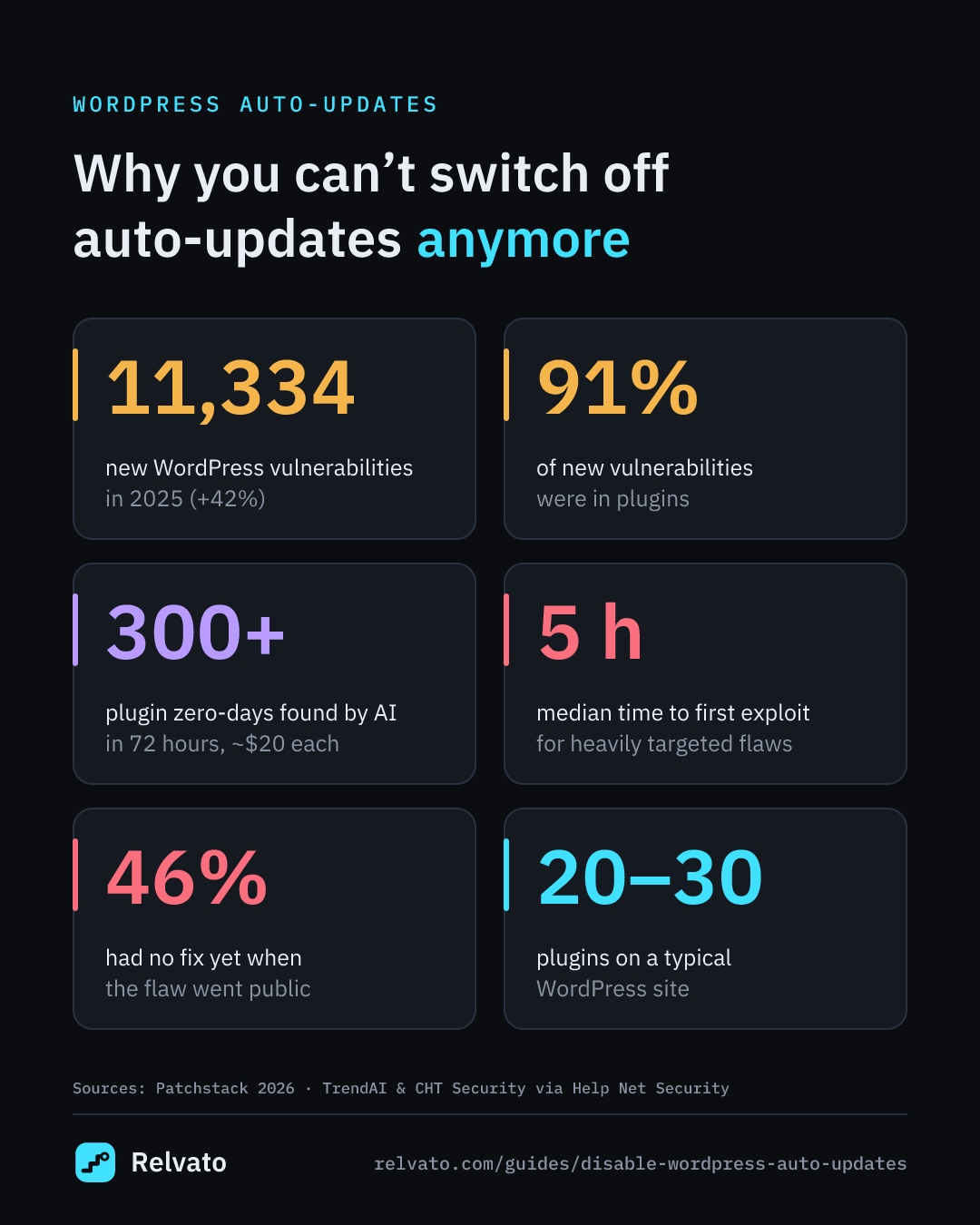
If you ask around, most WordPress sites have between 20 and 30 plugins. Some sites run just fine with five plugins, while others need 50 to function — a store with payments, shipping, invoices, reviews, SEO, caching, backups, forms and a page builder adds up quickly. Every one of them is separate code from a separate developer, released on its own schedule.
That turns updates into a steady stream rather than an occasional event. If each of 25 plugins ships a release every month or two, that is somewhere between 12 and 25 plugin updates a month — before WordPress core, your theme, WooCommerce and its extensions. Nobody reviews that many changes by hand for long. The realistic choice is between letting updates pile up and automating both the updating and the checking.
Reason 1: AI finds vulnerabilities faster than ever
The number of known WordPress vulnerabilities is rising steeply. Patchstack counted 11,334 new vulnerabilities in the WordPress ecosystem in 2025 — 42% more than in 2024 — and 91% of them were in plugins. Every one of those is a reason for a plugin author to ship an update, and a reason for your site to need it.
AI is accelerating the discovery side. In May 2026, researchers from TrendAI and CHT Security reported using AI to find more than 300 critical zero-day vulnerabilities in WordPress plugins in 72 hours of scanning, at roughly $20 per vulnerability. Patchstack’s 2026 report warns that attackers are being equipped with AI that is increasingly capable of finding and exploiting vulnerabilities on its own. When finding a bug costs less than a takeaway lunch, the plugins on your site are being examined constantly — by defenders and attackers alike.
Exploits now arrive in hours, not weeks
A weekly manual update day assumes you have days between a fix being published and someone attacking the flaw. You don’t. Patchstack found that heavily targeted vulnerabilities were first exploited a median of five hours after disclosure, and that 46% of vulnerabilities weren’t fixed by the time they were made public — so when the fix does ship, attackers already know what to look for.
WordPress core is not exempt. On 17 July 2026, WordPress 7.0.2 and 6.9.5 fixed a critical flaw — later nicknamed wp2shell — that could let an anonymous visitor run code on the server. WordPress.org pushed the fix through the auto-update system, exploit code was public within a day, and Coalition reported attacks on its honeypots by 20 July. A site that had switched auto-updates off and planned to update the following Friday was exposed for the whole gap.
Your host’s firewall won’t reliably cover that window either: Patchstack measured that common hosting defences blocked only 26% of the attacks in its tests. A firewall is a useful extra layer, not a replacement for running the patched version.
Reason 2: AI is also speeding up the code you update to
The other side of the same shift is how software gets written. In Sonar’s 2026 State of Code survey of more than 1,100 developers, respondents said 42% of the code they commit is already AI-generated or assisted, and expected that to reach 65% by 2027 — while only 48% said they always verify AI-generated code before committing it.
For a WordPress site that means more releases, larger changes per release, and more chances that an update touches something your site relies on: a template, a hook, a CSS class, a checkout field. Security pressure pushes updates to ship faster; AI-assisted development makes each one broader. You can’t review that pile by hand, and freezing it only swaps a visible problem for an invisible one.
Disabling updates doesn’t remove the risk — it hides it
With auto-updates off, nothing breaks overnight, so the site feels stable. But the vulnerable version keeps running, and outdated or abandoned plugins are one of the most common ways WordPress sites get compromised. The failure just changes shape: instead of a broken checkout you notice today, you get an injected card skimmer or a hidden admin account you notice months later.
For online stores, the damage usually arrives slowly rather than in one dramatic outage. Updates get postponed because the last one broke something. A developer patches a plugin conflict by hand and bills the hours. A security fix waits for the next maintenance window. After a year, the site is too fragile to update at all. WooCommerce stores rarely fail because of a single crash — they fail because keeping them running quietly became more expensive, and more frightening, than anyone planned.
If you do keep something pinned — a heavily customised plugin, a premium add-on with a manual updater — you need to know the moment it becomes a liability. That’s the job of vulnerability monitoring, which flags installed plugins and themes with known vulnerabilities or no recent updates, and of file integrity monitoring, which catches core and plugin files that no longer match the official release.
How all these updates can still mess up your site
Plugins are where most of the trouble starts. WordPress plugins cause functionality issues very frequently, which makes them the leading cause of website crashes, errors and security vulnerabilities. Conflicts between plugins come first in the causes WordPress’s own troubleshooting handbook lists for the white screen of death and the “There has been a critical error on this website” message — and its first fix is to deactivate plugins. On the security side, 91% of the new vulnerabilities Patchstack counted in 2025 were in plugins.
Staying current doesn’t make updates harmless. An update can conflict with another plugin, change a hook your theme depends on, raise its PHP requirement, rename the CSS class your custom styles target, or add a script that throws an error on mobile. On WooCommerce, a template update leaves your theme’s outdated override rendering, and a checkout field or nonce quietly goes missing. An interrupted update can leave the whole site stuck on “Briefly unavailable for scheduled maintenance”.
Most of these don’t take the site down, so uptime checks stay green. What breaks is a path — add to cart, pay, log in, submit a form — or a layout that only looks wrong on one template. The full picture of what changes underneath a site, updates included, is in our guide to why websites break when nobody touched them.
A safer WordPress update policy for 2026
Start with the plugin list itself: the count matters less than whether each plugin is still maintained. Fifty actively updated plugins can be safer than fifteen abandoned ones, so replace plugins whose last update was years ago and delete the ones you no longer use. Then keep automatic updates on for WordPress core security releases, always, and turn plugin and theme auto-updates on for everything that comes from a maintained source. If you hold anything back — say a major WooCommerce or page-builder release — hold it for a day to read the changelog, never for a security fix, and track it so it doesn’t turn into a month.
Make recovery cheap: take daily backups you have actually tested restoring, and know how your host rolls back a plugin version. Use staging for big redesigns and major version jumps if you have it, but don’t let the lack of staging become the reason updates stop.
Finally, and most importantly, re-test the site automatically right after updates run. The weak point of auto-updates was never the update itself; it was that nobody checked checkout until a customer complained. Once every update is followed by a real test of the paths that make you money, turning auto-updates on stops being a gamble.
How Relvato keeps you on top of the update pile
Relvato turns that last step into something you don’t have to remember. Its WordPress plugin reports every plugin, theme, core and WooCommerce update as it happens, and within minutes Relvato re-runs the checks that could be affected, in a real browser: checkout, login and payment methods, visual regression and structure drift on your key pages, and scans for PHP and JavaScript errors and broken links. Each run records which update triggered it, so an alert tells you what broke and which update to look at.
Relvato doesn’t install or roll back updates for you — WordPress and your host do that. What it gives you is the confidence to leave auto-updates on: if an update breaks something, you know within minutes instead of when sales drop. It also watches the other side of the problem, flagging plugins with known vulnerabilities and files that don’t match the official release. You can see how it works on WordPress on the WordPress monitoring page, and what it checks for stores on the WooCommerce monitoring page.
WordPress auto-updates: off, on, or on and verified
| Auto-updates off | Auto-updates on | Auto-updates on + checks after each update | |
|---|---|---|---|
| Security fixes applied | When you get round to it — often days or weeks | Usually within a day (WordPress checks twice a day) | Usually within a day (WordPress checks twice a day) |
| Exposure after a flaw is disclosed | Long; exploitation often starts within hours | Short | Short |
| Risk of an update breaking the site | Low day to day, then high on big catch-up updates | Spread across many small updates | Spread across many small updates |
| How you find out something broke | You tested by hand after updating — or a customer tells you | A customer or a drop in sales tells you | An alert within minutes, naming the update |
| Weekly effort | An update session plus manual testing | Almost none, until something breaks | Almost none; you act only on alerts |
| Main risk | Running known-vulnerable code | Silent breakage of checkout, forms or layout | Needs a monitoring tool and backups you can restore |
WordPress auto-updates FAQ
Should I disable WordPress auto-updates?
For most sites, no. Vulnerabilities in WordPress plugins are found and exploited faster than a manual update routine can keep up with — heavily targeted flaws are exploited a median of five hours after disclosure. Keep auto-updates on, keep tested backups, and check your key pages and checkout automatically after each update.
Are WordPress automatic updates safe?
They are safer than not updating, but not risk-free: an update can conflict with another plugin or your theme and break a checkout, a form or a layout without taking the site down. The risk is manageable when every update is followed by an automatic check of the paths that matter and you can restore a backup quickly.
How many WordPress plugins is too many?
There is no fixed number. Most WordPress sites have between 20 and 30 plugins; some run fine with five, while others need 50 to function. What matters is quality: each plugin is code from a different developer that needs updates, can conflict with the others and can carry vulnerabilities. Remove plugins you don’t use, avoid ones that haven’t been updated in a long time, and check your site automatically after updates.
Does WordPress update itself if I turn auto-updates off?
Minor core releases install automatically by default, but setting AUTOMATIC_UPDATER_DISABLED to true in wp-config.php stops all automatic updates, and plugins and themes only auto-update if you switched them on. WordPress.org can push critical core fixes through the auto-update system, as it did in July 2026, but don’t assume a forced update reaches a site where updates are disabled — check the version you are actually running.
How do I turn on auto-updates for WordPress plugins and themes?
On the Plugins screen, click “Enable auto-updates” next to a plugin, or select several plugins and use the bulk action. For themes, open a theme under Appearance and click “Enable auto-updates”. If the links are missing, your host or a plugin has disabled the feature, or the site runs a WordPress version older than 5.5.
What should I do if an automatic update breaks my site?
Find which update ran just before the problem, then roll that plugin or theme back to the previous version or restore your backup, and report the conflict to its author. If the site is stuck on “Briefly unavailable for scheduled maintenance”, delete the leftover .maintenance file in the WordPress root. Keep auto-updates on for everything else while you fix the one that broke.
Sources
- Patchstack — State of WordPress Security in 2026
- Help Net Security — AI finds WordPress plugin zero-days at about $20 each (May 2026)
- WordPress.org — WordPress 7.0.2 security release
- The Hacker News — wp2shell WordPress core flaw
- Coalition — WP2Shell vulnerabilities exploited in the wild
- Sonar — State of Code developer survey
- WordPress.org — Plugin and themes auto-updates
- WordPress Developer Resources — Upgrading WordPress (automatic background updates)
- WordPress Developer Resources — Common WordPress errors